Smartphone prices now routinely top 2,000,000 KRW (approximately 1,500 USD). How do people actually use these pocket supercomputers—equipped with the latest processors, professional-grade cameras and vibrant displays?

But if you open the Settings app and explore a little, you’ll find features that can genuinely simplify daily life. Those “Wait—this exists?” moments aren’t mere tech showmanship. They remove repetitive tasks, protect your privacy and even let your phone act contextually without constant input.
Start thinking of your smartphone not as something to study but as a personal assistant. Once you configure it to fit your routines, mornings and workflows become noticeably smoother. Rather than defaulting to the obvious features everyone uses, try awakening the “brilliant instincts” sleeping inside your device.
Work through the Galaxy and iPhone tips below one at a time, and before long your handset will feel less like a gadget and more like a reliable personal aide. Don’t overthink it—just opening the Settings menu is the first step toward a truly smarter life.
How to use your Galaxy more efficiently
What began as Bixby Routines has evolved into a feature powered by agentic AI that understands your context more precisely. You can set conditions based on location (GPS), connected Wi‑Fi name, paired Bluetooth devices (car, headphones), time, battery level and even whether specific apps are running.
For example, you can configure a rule so that when your phone connects to the office Wi‑Fi it switches to vibrate, sets screen brightness to 50% and prioritizes only your company email notifications. When your phone pairs with your car’s Bluetooth after work, it can launch navigation and start playing music automatically—creating an optimized environment without you having to intervene.
Dual Messenger: a clear boundary between work and life

Each instance runs inside its own sandbox, and you can choose whether to share contacts. That makes it easy to keep work group chats and personal conversations separated on a single device.
Split screen
This capability shines on large-screen foldables and Ultra models. Save frequently used app pairings in the Edge Panel, and a single tap can split the display—YouTube above Notes, for example—so you can watch a lecture while taking notes.
You can also open apps in pop-up (windowed) mode and adjust their size and transparency. That lets you watch a strategy video while gaming or use a calculator while browsing, maintaining a smooth flow between tasks.
Answer calls with text

Open the Phone app, tap More (three dots) at the top-right → Settings. Select “Answer with Text” to enable the feature. When a call comes in, slide the “Answer with Text” button on the incoming-call screen to activate it.
Use Secure Folder

You can install banking apps inside the Secure Folder for an extra layer of protection, or lend your phone without exposing sensitive personal information.
Continue apps across devices
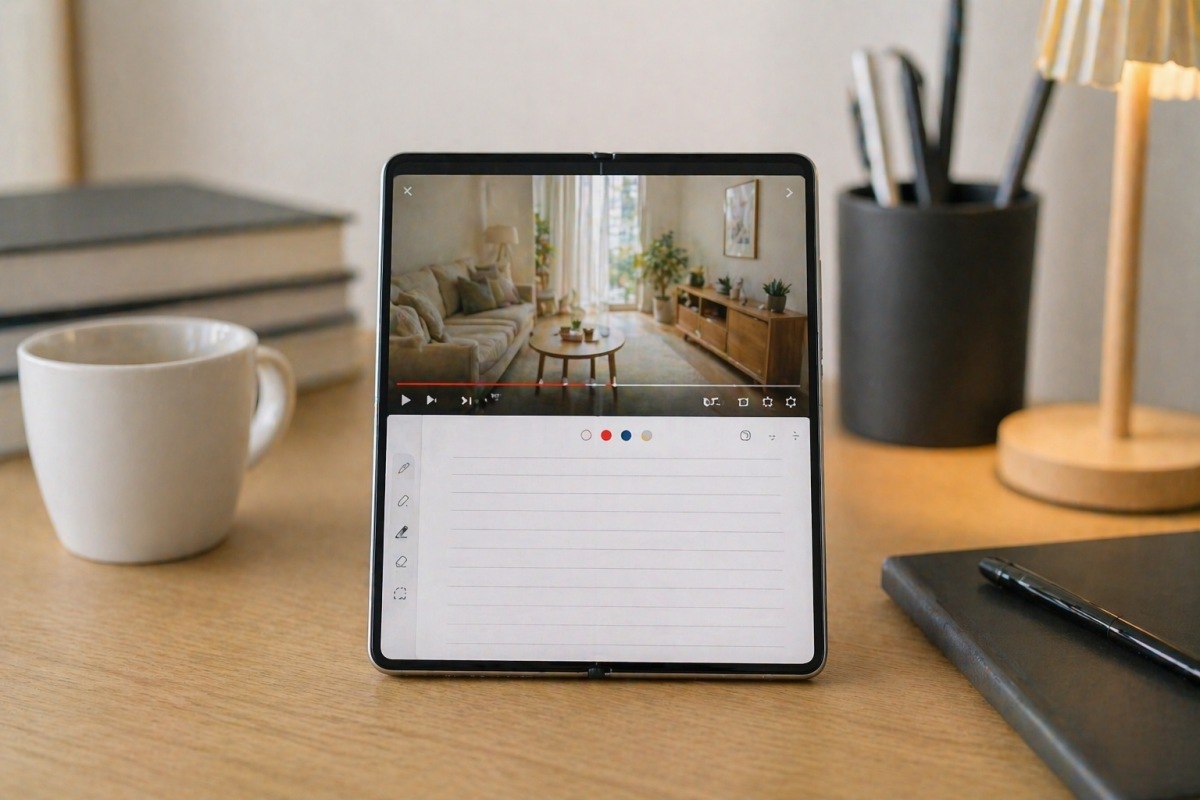
Go to Settings → Connections → Continue apps on other devices and turn it on. Both devices must be signed into the same Samsung account and have Bluetooth enabled. For example, if you search for something on your phone while out and then open your tablet at home, the page you were viewing may appear on the tablet’s bottom bar so you can switch to the larger screen instantly.
How to use your iPhone efficiently
From here on, we’ll cover ways to make an iPhone work for you. Start with Focus modes. Beyond simple Do Not Disturb, Focus alters your phone’s behavior based on location, time or calendar events. Enable a “Work” Focus and allow calls and messages from colleagues while silencing social media alerts.
Focus can also show a dedicated home screen of work apps, hide entertainment apps after hours and even change the lock-screen wallpaper to help cue a mental shift between modes.
Play background sounds
You don’t need a paid app to play high-quality white noise on an iPhone—the system offers Background Sounds to mask ambient noise, boost concentration or aid sleep.
iPhone provides six sounds, including rain, ocean and stream, and you can play them alongside music or videos.
To enable: Settings → Accessibility → Audio/Visual → Background Sounds, toggle it on and select a sound (Balanced Noise, Rain, Ocean, etc.). Add the Hearing icon (an ear) to Control Center for quick access without diving into Settings.
Use Sound Recognition

Turn it on in Settings → Accessibility → Sound Recognition, then check the sounds you want detected (smoke alarms, doorbell, running water, etc.). With this active, you’ll receive vibrations and alerts if someone knocks or a delivery person rings the bell while you’re wearing noise‑cancelling headphones.
Organize Safari Tab Groups
Group accumulating tabs by topic—“Summer Vacation,” “Investment Reports,” and so on—to keep your browsing organized. Tab Groups sync in real time across iPhone, Mac and iPad, letting you preserve and share current work sessions across devices for a seamless browsing experience.