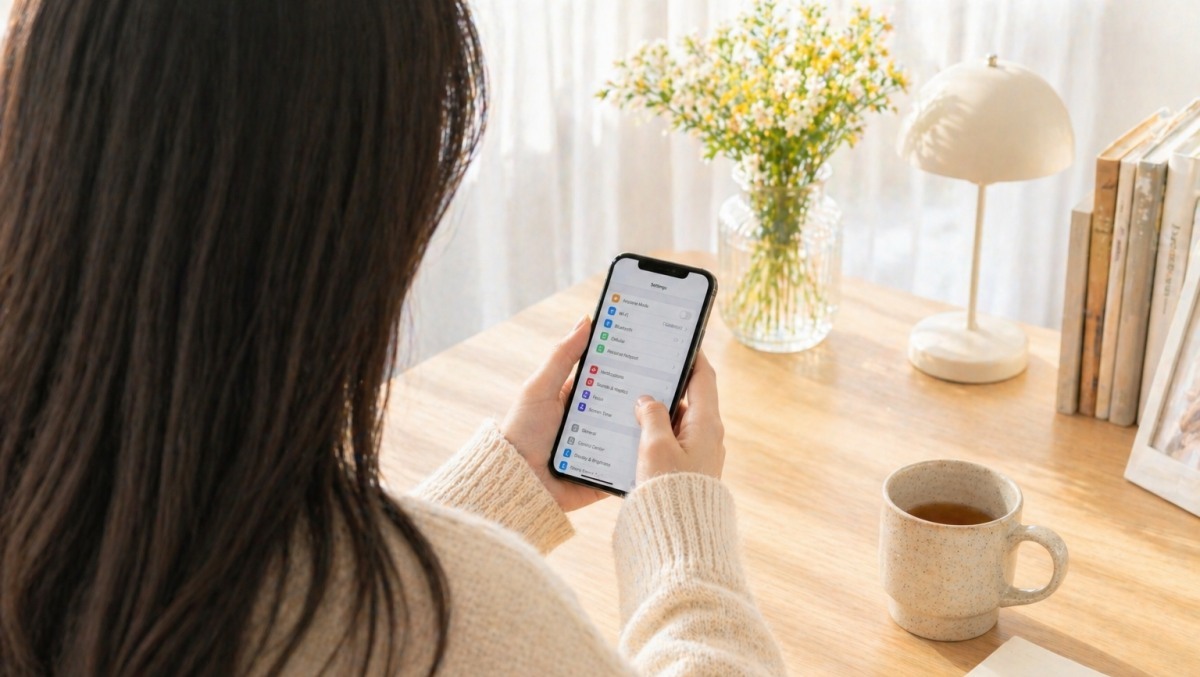
Smartphones are essential to modern life. They've evolved from simple communication devices into personal assistants, high‑end cameras and private theaters. Yet many practical features—useful convenience tools tucked away in settings—go unexplained by manufacturers and unnoticed by most users.
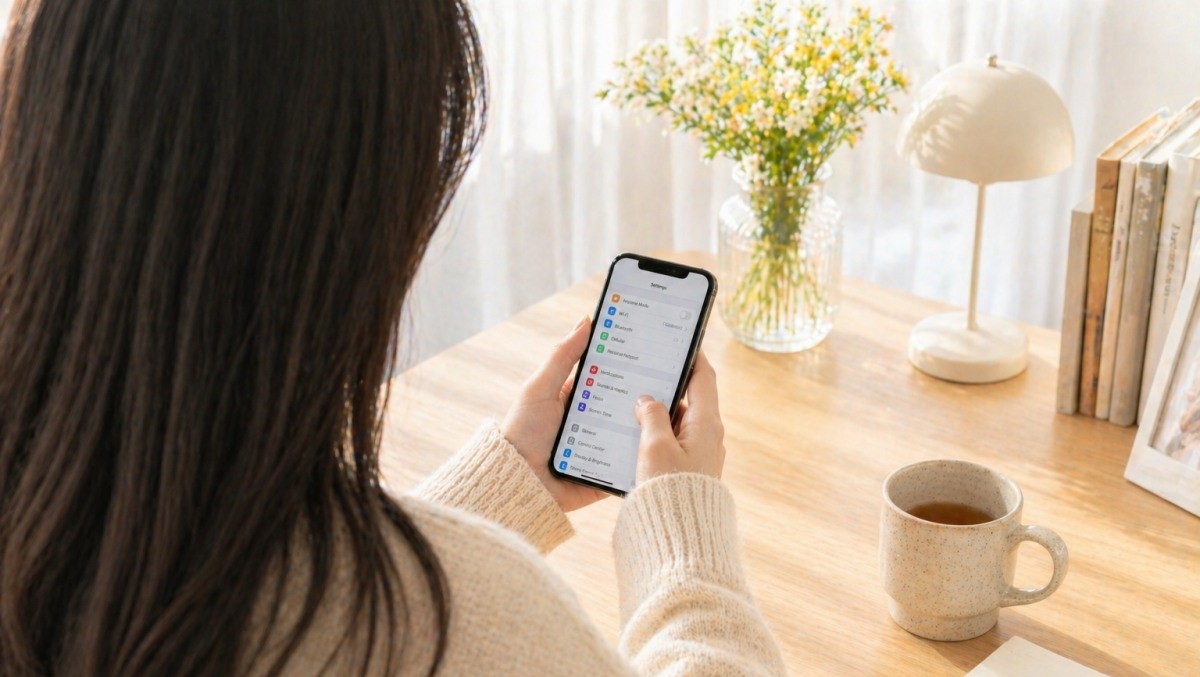
You don't need to learn to code or buy pricey apps. Often, flipping a switch buried in menus or long‑pressing a part of the screen is enough to turn your phone into a genuinely smarter device. Features that boost productivity for workers, help travelers take better photos, and protect privacy for security‑conscious users are already in the palm of your hand.
The tips below highlight features iPhone and Galaxy owners commonly overlook. You can tap the back of your phone to toggle the flashlight, let AI answer nuisance calls, or remove only loud background noises from a video—capabilities that feel almost magical but are built into current devices.
Answer Calls by Text
Galaxy's Hold Assist and Bixby Text Call let AI handle incoming calls on your behalf. These options are controlled from the Phone app’s settings.
To enable: open the Phone app → tap More (three‑dot icon) in the top right → Settings → select Text to Answer (Bixby Text Call). Turn the switch on and a Text to Answer button will appear for unknown callers. Tap it and the AI answers with a greeting such as, “Hello—who is this and what is your reason for calling?” The caller’s words are then transcribed to the screen in real time.
Smarter Video Editing
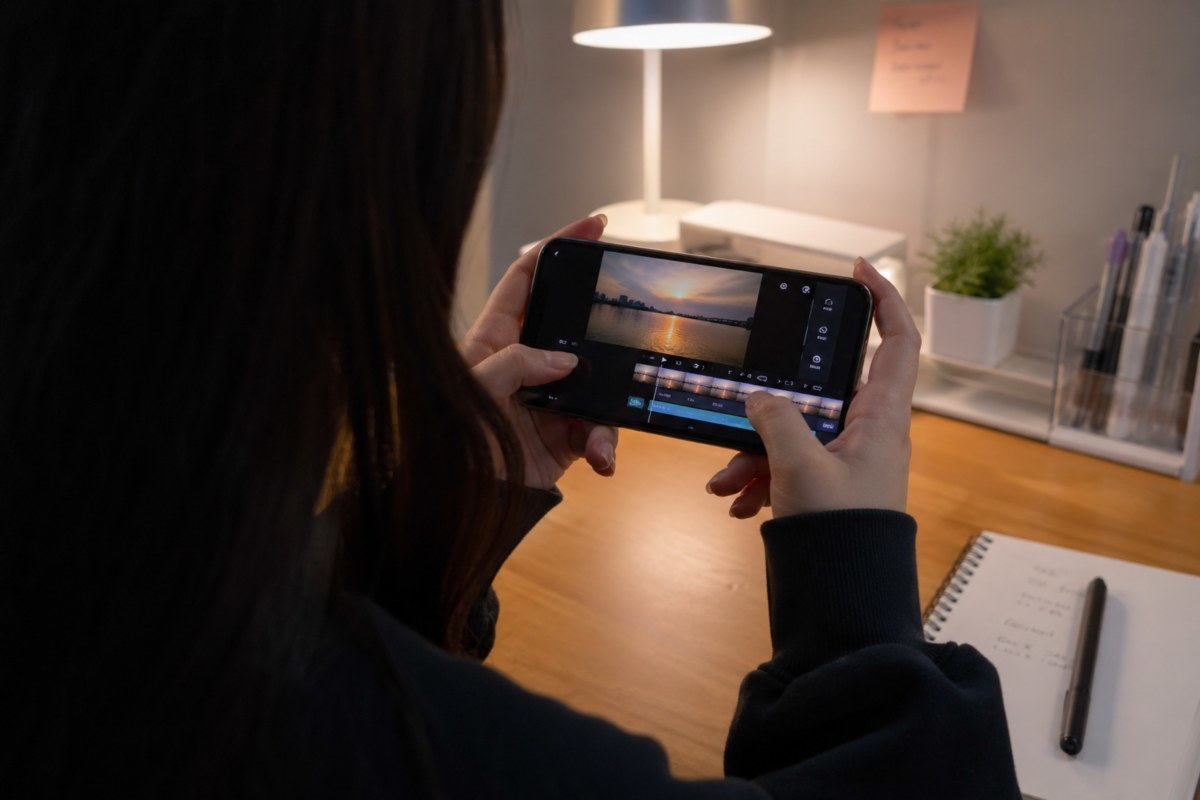
Steps: open the Gallery app and select the video → tap the pencil icon (Edit) at the bottom → tap More at the bottom right → choose AI Eraser → select Audio Eraser from the top menu.
The AI analyzes the soundtrack and classifies elements like background music, voices and ambient noise. Adjust the sliders to reduce background sounds and boost voices, or remove a particular noise entirely.
Force Multi‑Window for Any App
Go to Settings → Useful features → Labs, then enable Support multi‑window for all apps.
With that enabled, apps that normally prevent split‑screen can be forced into half‑screen or popup windows. That makes it easy to watch YouTube while scrolling Instagram or to run a messenger alongside another app.
If you also enable Open in full screen from split screen, the system hides the top status bar and bottom navigation bar during multi‑window use, giving you more usable space.
Use Gallery Labs!
If you want advanced controls, enable Gallery Labs.
Open the Gallery app settings → Gallery app info → tap Version (the number) repeatedly. A message that reads Gallery Labs is enabled will appear at the bottom. Go back and you’ll find a Gallery Labs menu near the bottom of Settings.
There you can instantly convert photos to PDFs, add per‑album security locks, and try experimental upscaling for low‑resolution images—beta features you can test before they roll out widely.
Set Remind Me Later for Missed Calls
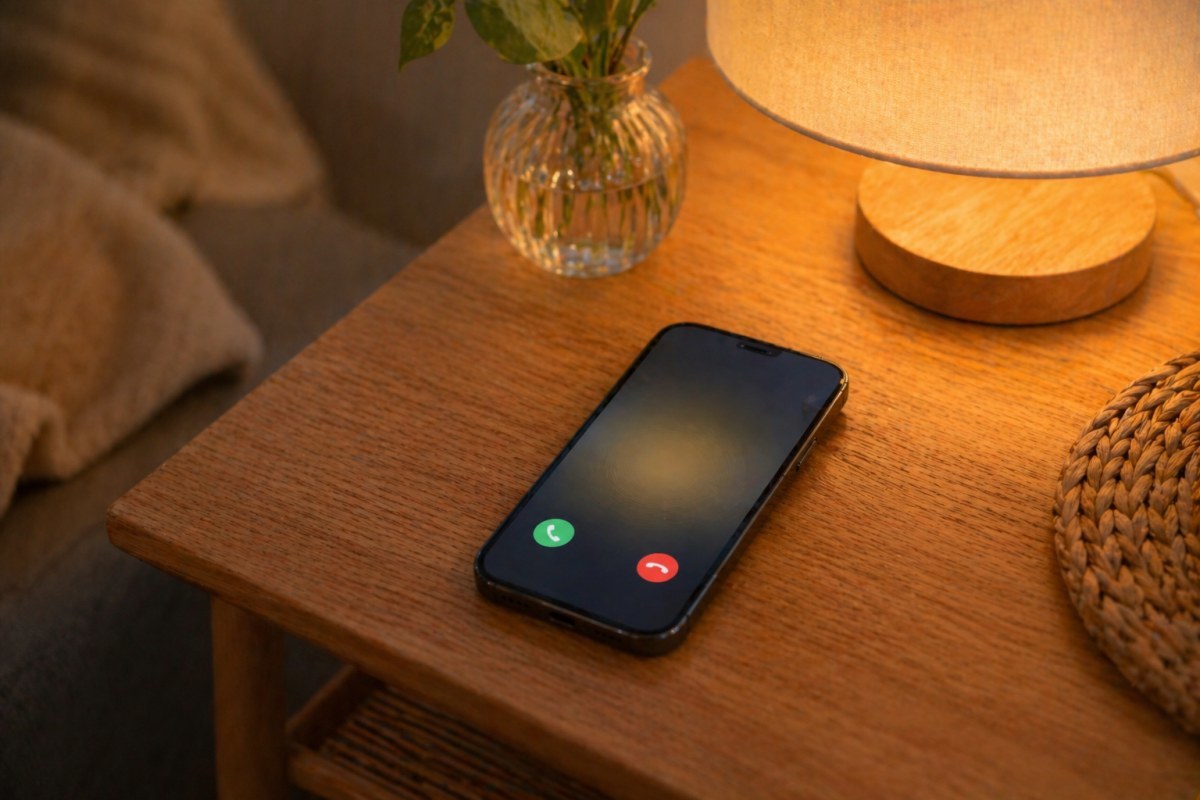
In the Phone app’s Recent list, swipe a missed call left and tap the clock‑shaped Remind Me icon. Choose an option like In 1 hour, This evening, or When I leave this location. The selection syncs with the Reminders app and will alert you at the chosen time.
Advanced Back Tap and Shortcut Integration
Back Tap uses the iPhone’s accelerometer to trigger actions without pressing physical buttons. To set it up, go to Settings > Accessibility > Touch > Back Tap.
Assign actions to Double Tap or Triple Tap. Beyond built‑ins like screenshot and flashlight, you can link any Shortcut you create in the Shortcuts app.
For example, create a Turn off lights when I get home shortcut and assign it to Back Tap. When you arrive, tapping the back of your phone can trigger a HomeKit routine to switch off smart lights.
Partial Copy and Smart Translation in iMessage
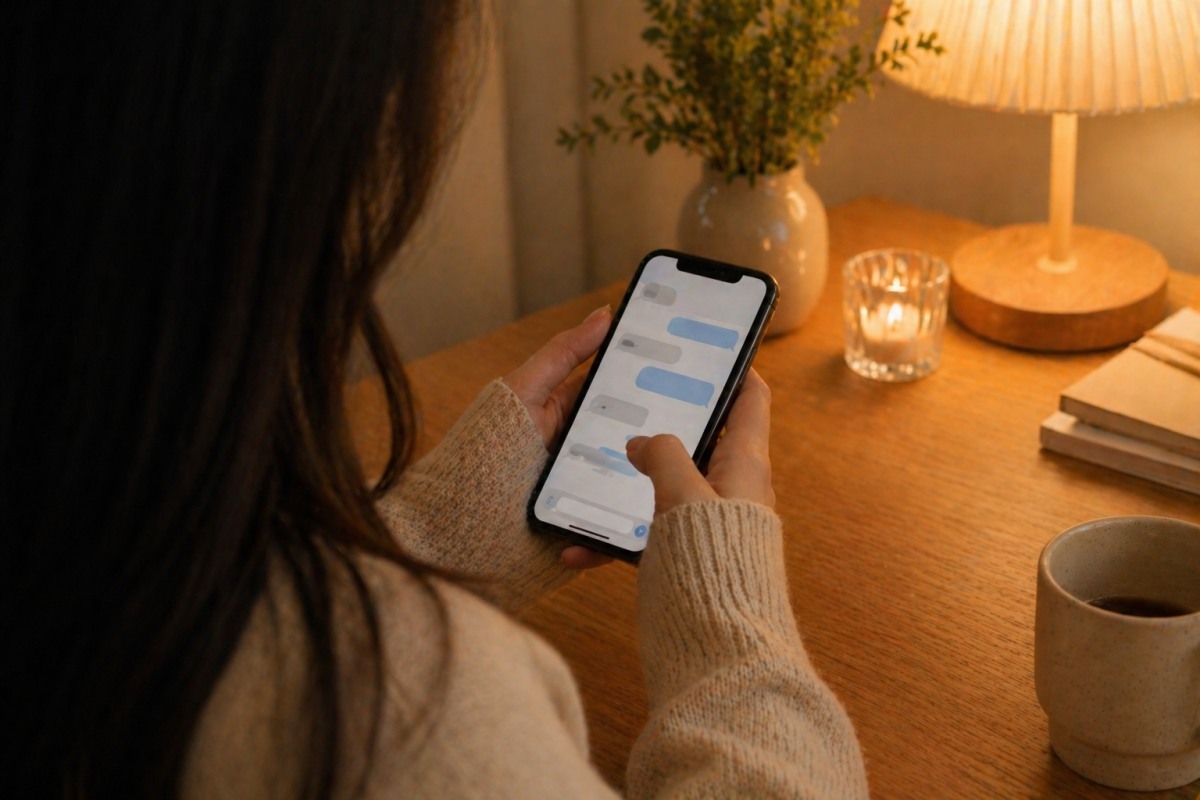
To copy part of a message, lightly double‑tap or drag to select the exact text you want rather than long‑pressing the whole bubble. This lets you copy only the words you need.
You can also translate messages in real time. Long‑press a foreign‑language message, choose Translate from the pop‑up, and the built‑in translator converts it immediately to English. Use Replace with Translation to compose a reply in that language.
Create a Personal Voice
Personal Voice learns your voice so typed text can be read back in your own tone and cadence—useful for people at risk of losing their voice or those who rely on remote communication.
Go to Settings > Accessibility > Personal Voice > Create a Personal Voice. Read roughly 150 on‑screen phrases to train the model. After training, Live Speech lets typed text be spoken in your voice. The process runs on‑device, so your voice data never leaves the phone.
Tips to Optimize Performance and Battery
Then set Window animation scale to 0.5x for a snappier experience.
On iPhone, enable Reduce Motion at Settings > Accessibility > Motion to simplify transitions, reduce visual fatigue and shave a bit off battery drain.
Both platforms also offer optimized charging. To protect lithium‑ion battery lifespan, Apple and Samsung provide options that limit charging to about 80%. For users who plan to keep a device for two years or more, enabling these settings can help preserve long‑term battery health.