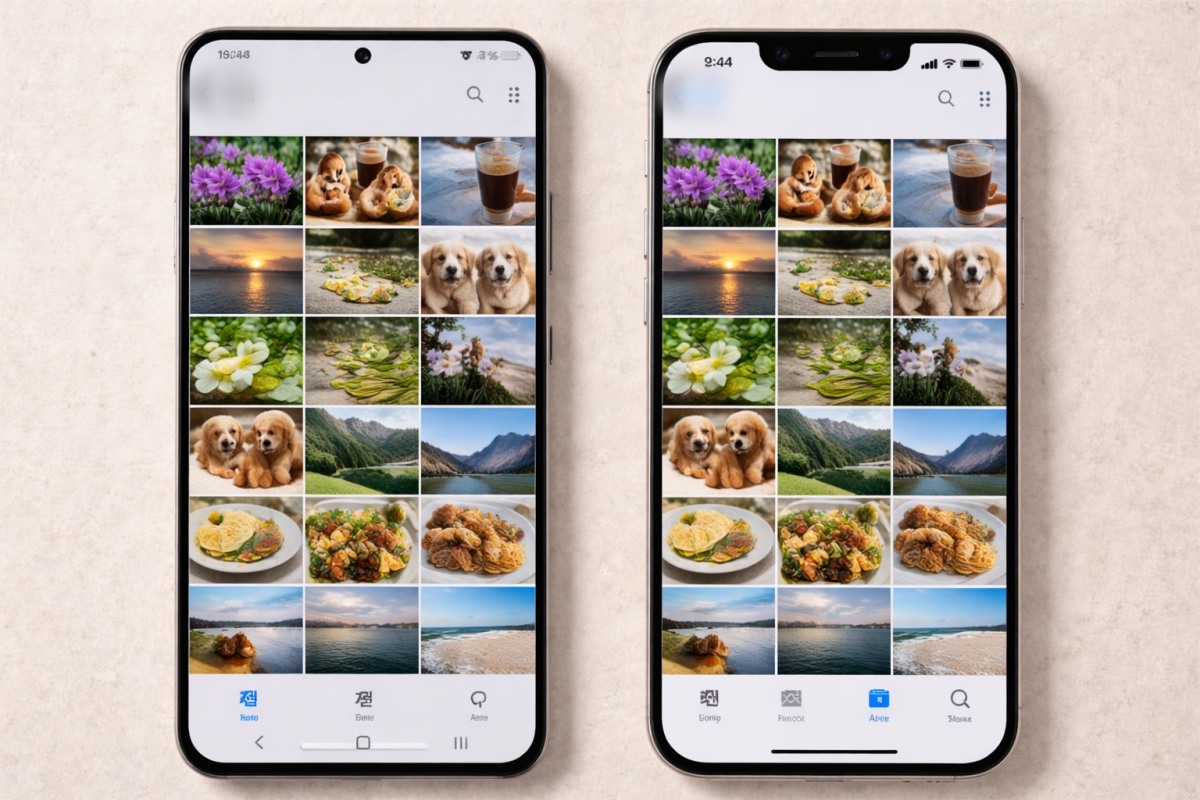
Running out of smartphone storage does more than stop you from taking a photo — it can slow your entire device. Many people free up space by deleting cherished images first, but the real offenders are often swollen messenger caches and forgotten offline downloads from streaming services.

Separate messenger cache from media when cleaning
Apps such as KakaoTalk and Telegram save sent and received photos, videos and voice messages as temporary files (cache) to speed up reloading. If you belong to many group chats or haven’t cleared chats in months, cache alone can easily exceed 10 GB.
It’s important to distinguish deleting conversation history from clearing cache. In the app’s storage management settings, choose “Clear cache” to remove thumbnails and temporary multimedia files while leaving chat texts intact — an instant way to free space. If you might need certain photos later, save them to “My Drawer” or a personal cloud before clearing the cache.
Use built-in tools to remove duplicate and similar photos
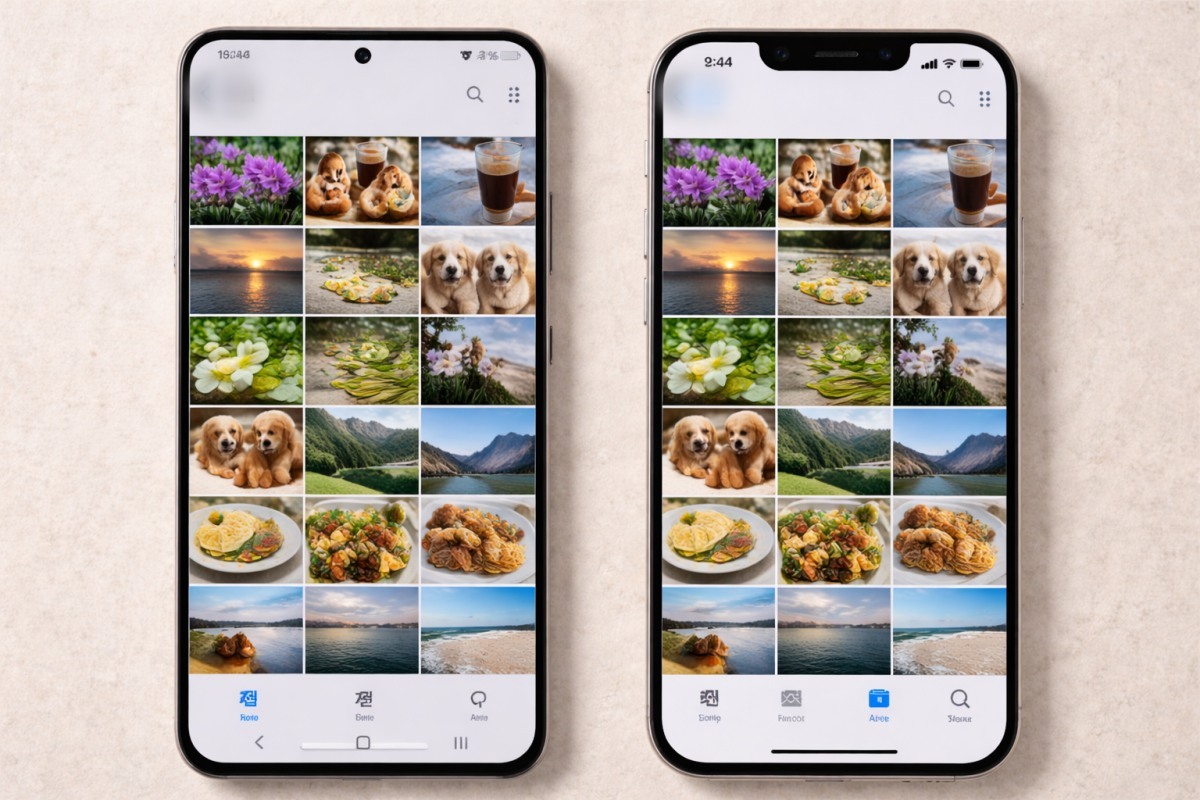
Use burst-photo pruning to keep only the best shot from a series, and clear out the “Screenshots” album to remove informational captures you no longer need. These steps can free significant space without paying for extra cloud storage.
Clear browser data and manage unused apps

If you’re reluctant to delete unused apps, try the iPhone’s “Offload Unused Apps” feature. It removes the app but preserves documents and data so you can reinstall with settings intact. Android offers similar tools to reclaim permissions and clear temporary files from long-unused apps.
Check “System Data” and “App Data”
In Settings’ storage analysis, “System Data” or “Other” can sometimes consume tens of gigabytes. These categories typically include log files created after app installs, temporary advertising data and leftover files from software updates.
Video-first apps like Instagram, TikTok and YouTube often preload large amounts of content to display posts quickly. Uninstalling and reinstalling the app can reset abnormal storage usage; account-stored chat histories and settings will return when you sign back in, while the device’s cached leftovers are wiped.
Review offline downloads in streaming and music apps

Use the app’s “Offline Saved Content” management to bulk-delete watched items. Music apps such as Melon or Spotify also cache tracks by default; set a cache-size limit or clear the cache regularly to prevent runaway storage use.
The trash-can paradox: deleted isn’t freed until you empty it

Photos and videos remain in Trash for up to 30 days and continue to occupy device space during that time. To actually free storage, open the gallery or file manager’s Trash and tap “Empty” to reclaim the physical space.